
Calendar
A full-featured calendar view for YouTrack: Keep track of issues and sprints across projects in daily, weekly, monthly, and yearly views.
Free YouTrack Extension
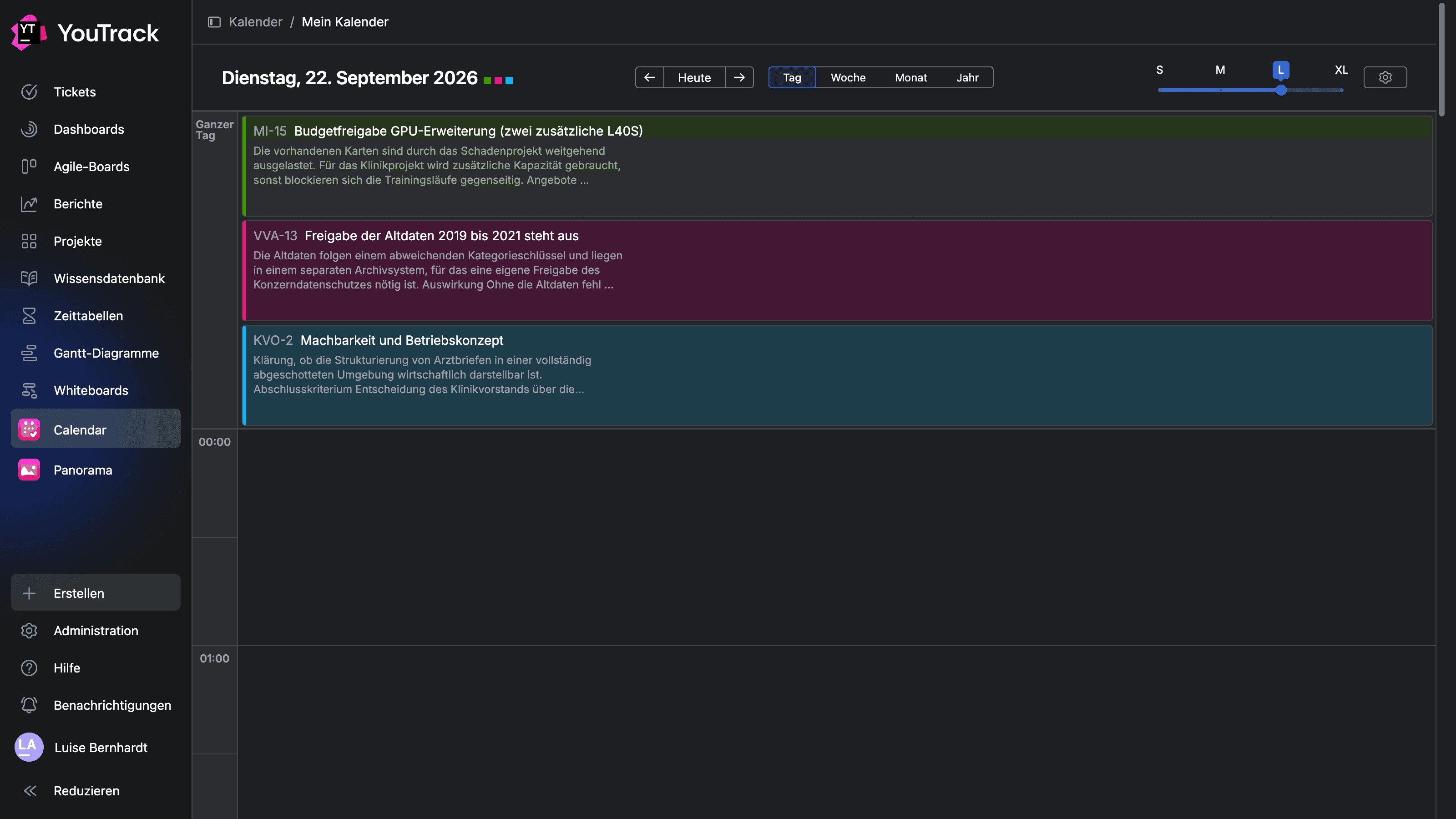
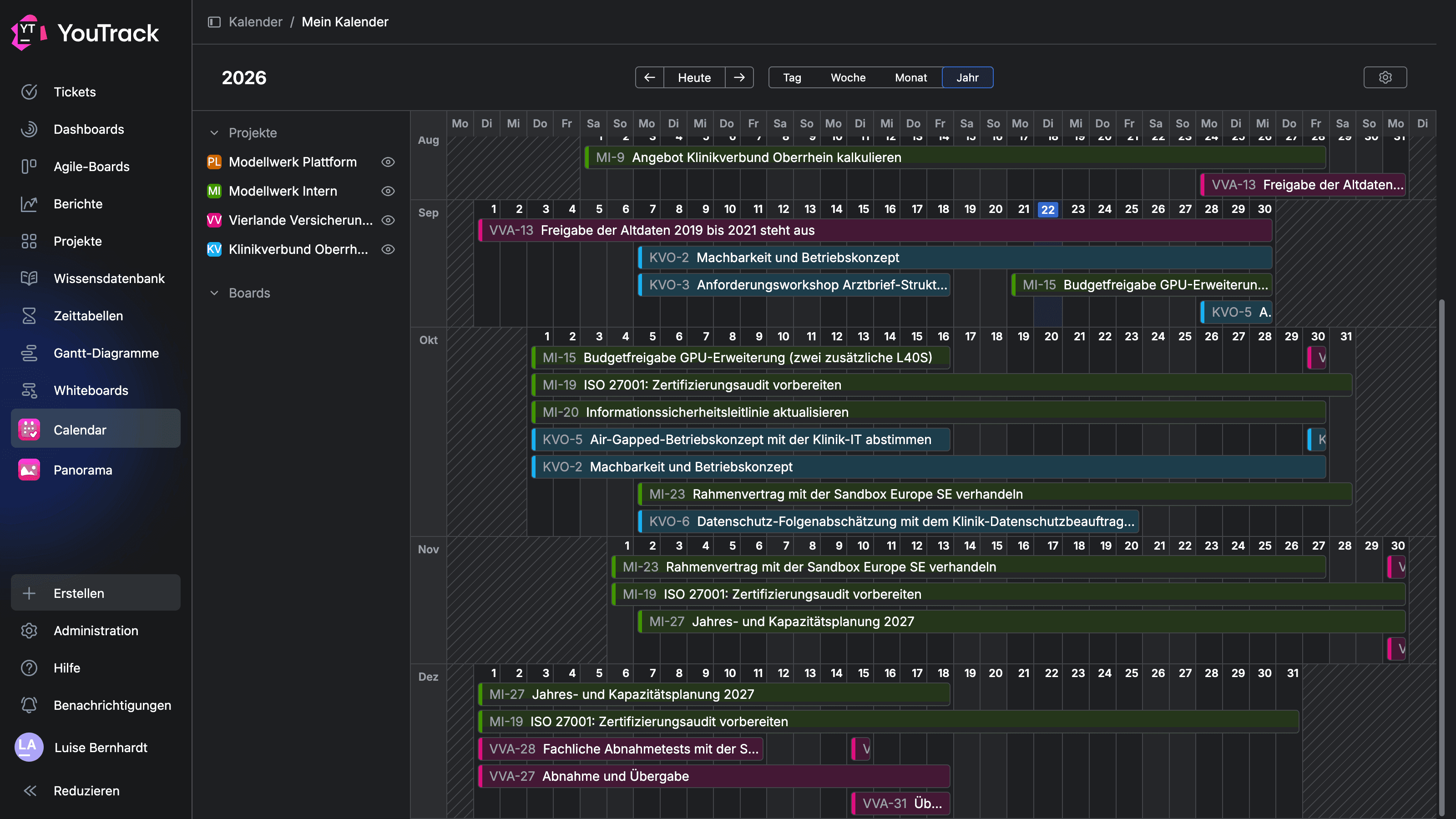
"My Calendar" as the main application in the YouTrack sidebar
Why Use Calendar for YouTrack?
YouTrack currently offers only limited options for displaying issues with date fields in a calendar-style view. Calendar fills this gap and, as the main application in the YouTrack sidebar, provides a centralized interface with a global calendar that spans all configured projects and Agile boards.
What "My Calendar" Displays
The calendar displays only your own appointments. This gives you a concise, single view of all issues assigned to you, as well as all sprints and Agile boards in which you are participating. You can easily keep track of your tasks without having to search for them in different places. To use this feature, the issues must have a configured date field.
Customized display across four different time periods
Switch between daily, weekly, monthly, and yearly views. Each view is optimized for its respective time frame. The daily view displays appointments, including times and all-day entries; the weekly and monthly views show multi-day issues and sprints continuously throughout their entire duration; and the yearly view displays the entire year on a single page. Additionally, you can choose how much detail to show per entry, ranging from concise to comprehensive.
Configure Projects and Sprints as Sources
You configure Calendar directly within the app and can add any YouTrack projects and Agile Boards. For each source, you can specify which calendar view it appears in, whether only the due date or a time span consisting of start and end dates is displayed, and the color in which the entries appear in the calendar. For Agile Boards, you can also specify whether to display only the current sprint or to include past and archived sprints as well.
Interaction with " Panorama " and "Holidays"
Calendar is the user-centered counterpart to our planning app Panorama. There, team leads plan issues and tasks across projects on their own planning boards; in the Calendar, the results of this planning are visible to each user individually. And with Holidays (coming soon), we’ll provide public holidays centrally in YouTrack and make them available for use in other apps.
Install for free
via JetBrains Marketplace
Installation is done exclusively through the JetBrains Marketplace. There, enter the base URL of your YouTrack instance and select “Install.”
Questions & Feedback
Do you have questions about Calendar or suggestions for future improvements? We look forward to hearing from you.
Contact usFrequently asked questions
Here you'll find answers to the most important questions about the " twenty20 " Calendar extension for JetBrains YouTrack.
Calendar is an extension for JetBrains YouTrack that displays a calendar as the main application in the YouTrack sidebar. Under the heading "My Calendar," Calendar shows only the events relevant to the logged-in user: issues with date fields that are assigned to them, as well as the sprints on the Agile Boards in which they are participating.
YouTrack natively offers only a Due Date Calendar widget for dashboards, which displays issues based on a date field. There is no calendar app permanently accessible in the sidebar. Calendar addresses this need and provides a global calendar across all configured projects and boards, with daily, weekly, monthly, and yearly views.
The Calendar displays all issues that have a value in a configured date field, as well as all sprints from the Agile boards that have been added. This requires that the relevant projects and boards be added in the Calendar settings.
Calendar offers daily, weekly, monthly, and yearly views, each optimized for the selected time period. Use the arrows in the header to navigate through time, and use the slider ranging from S to XL to specify how much information is displayed per entry.
You can configure Calendar directly in the app's calendar view. Tap the gear icon to open the calendar settings, then select your YouTrack projects and Agile Boards in the "General" tab. Each source appears as its own field, which you can expand and customize individually: the desired calendar view, whether to display as a due date or a time period, and the color in the calendar.
Calendar recognizes issues based on user-defined fields of the "Date" or "Date and Time" type. You specify which date fields are included for each project. An issue will only appear in the calendar once the configured field has been filled in.
If the option for multi-day events is enabled, Calendar displays issues and sprints over the entire time span between the start and end dates. If there is no end date, the app uses the start date as the end date and displays the entry as a one-day event. If the start date also includes a time, the app assumes a duration of 30 minutes when there is no end date.
Yes. The collapsible sidebar lists all the projects and boards that have been included. Use the eye icon to show or hide individual sources without removing them from the settings or losing their configuration.
A single click on an issue ID opens the issue in full view in a new window; a double-click opens the detail view directly on the current page. Clicking on a sprint takes you to the corresponding Agile Board for that sprint.
Calendar is primarily a viewing tool and therefore does not offer drag-and-drop functionality within the calendar interface. You can change date fields via the issue's detail view. Our app Panorama is designed for actively planning issues and tasks on a timeline. The results of this planning are visible in the calendar at the user level.
Calendar is the user-centered counterpart to Panorama: In Panorama , teams plan issues and tasks across projects; in the calendar, each user sees the resulting appointments in their personal view.
By default, Calendar is visible to all users of your instance. If necessary, you can restrict visibility to specific user groups under Administration → Apps in the "Settings" tab. The change takes effect immediately.
Installation is done exclusively through the JetBrains Marketplace. There, on the app page, enter the base URL of your YouTrack instance and select "Install." You will then find Calendar in your instance in the main sidebar menu, and the app settings under Administration → Apps.

twenty20 GmbH & Co. KG
Hausinger Straße 6
40764 Langenfeld
+49 (0) 2173 167 00 50